How to Set up Email Templates in Gmail
Step 1: Open Gmail Settings
Log into your Gmail account on desktop (templates must be enabled on desktop).
In the top-right corner, click the gear icon.
Select See all settings.
Step 2: Enable Templates in Gmail
In the Settings menu, click the Advanced tab.
Find Templates in the list.
Select Enable.
Scroll to the bottom and click Save Changes.
Your Gmail will refresh, and templates are now activated.
Step 3: Create a New Email Template
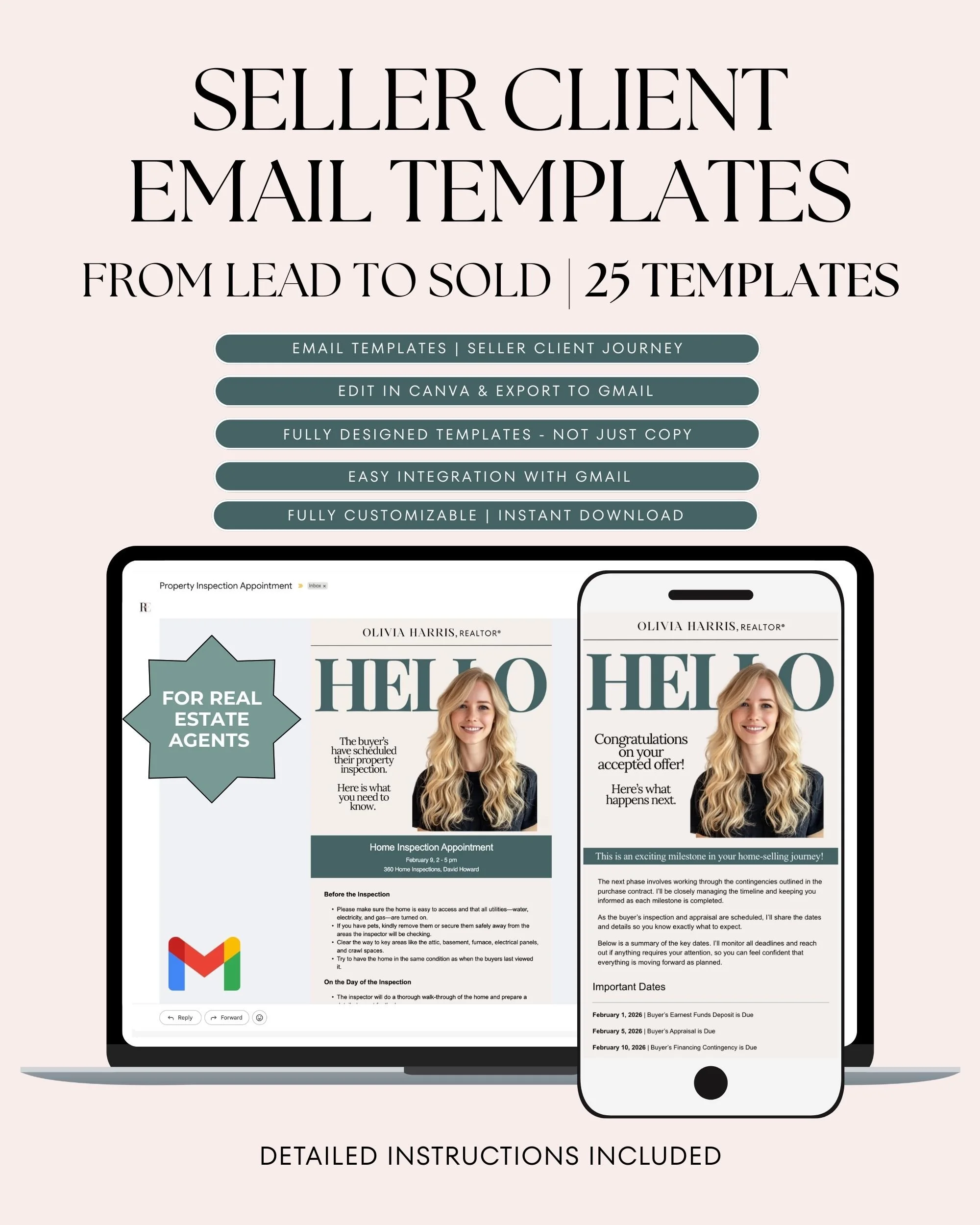
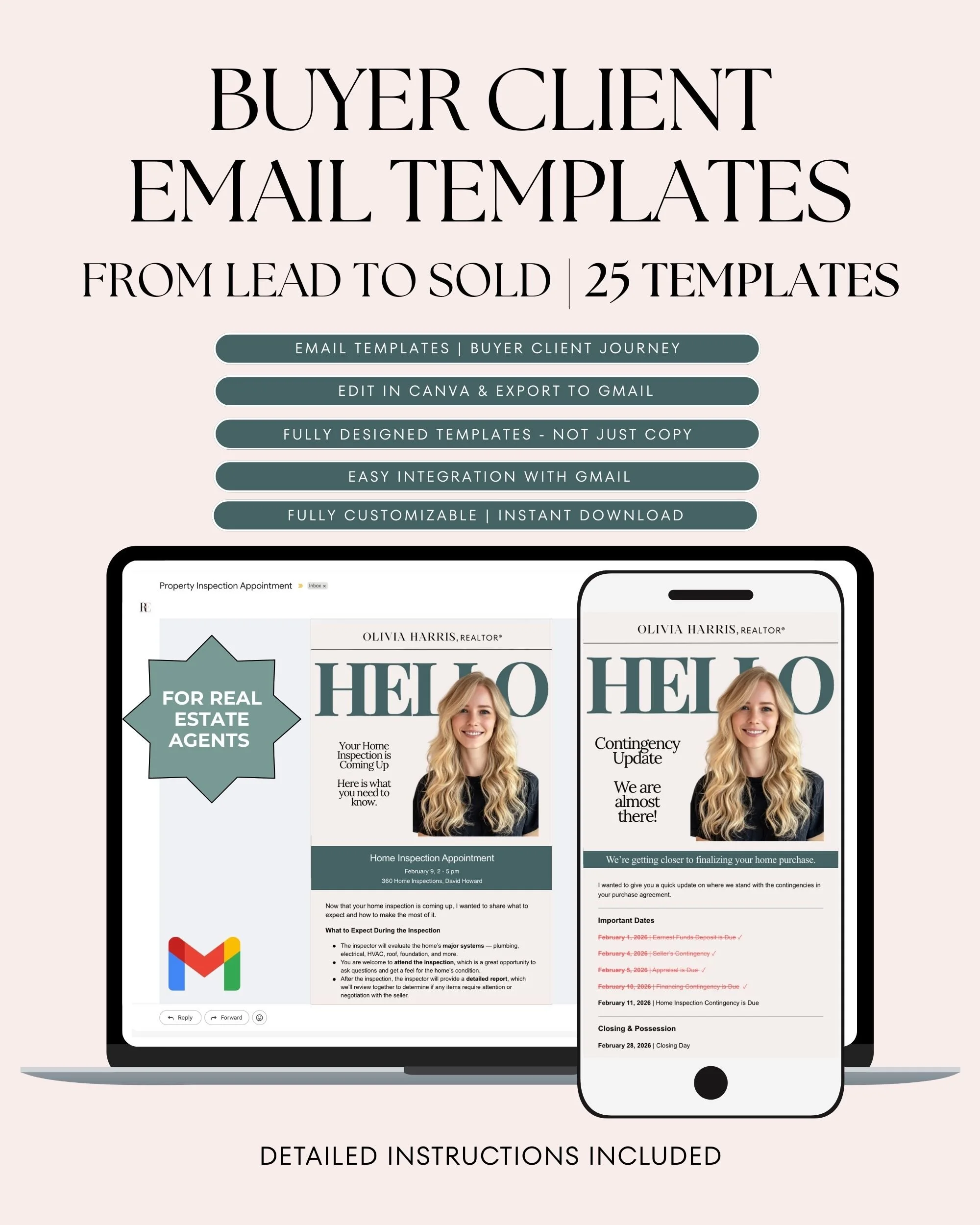
Click Compose to start a new email or use one of our email templates
Write the email exactly how you want it to appear when reused.
Leave out personalized details like names or addresses (you’ll customize those later).
Step 4: Save the Email as a Template
In the compose window, click the three dots (⋮) in the bottom-right corner.
Hover over Templates.
Click Save draft as template.
Choose Save as new template.
Name your template clearly (example: Buyer Under Contract – Day 1).
Your template is now saved.
Step 5: Insert a Template into an Email
When you want to reuse your template:
Click Compose.
Click the three dots (⋮) in the compose window.
Hover over Templates.
Select the template you want to use.
The full email will automatically populate into your draft.
Step 6: Customize Before Sending
Before hitting send:
Update the client’s name
Adjust fine details
Add a subject
Templates are meant to save time—not remove the human touch.
Step 7: Edit or Update an Existing Template
To make changes to a saved template:
Insert the template into a new draft.
Edit the content.
Click the three dots (⋮) again.
Go to Templates → Save draft as template.
Select the existing template name to overwrite it.
This keeps your templates current without creating duplicates.
Step 8: Delete a Template (Optional)
Click Compose.
Open the Templates menu.
Choose Delete template.
Select the template you no longer need.
Final Thoughts
Gmail email templates are one of the simplest ways to streamline your communication, stay consistent, and look polished without extra effort. Once set up, you’ll wonder how you ever managed without them.
If you regularly send similar emails to clients, templates aren’t just helpful—they’re a productivity essential.